

描述
Flash Drive & USB Flash Drive Guide: USB-C, USB-A, Thumb Drive and Modern USB Storage Explained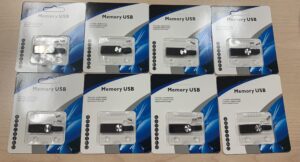
In today’s fast-paced digital world, a flash drive is still one of the most convenient tools for moving and backing up data. Whether you call it a usb flash drive, thumb drive, or usb thumb, this small device delivers powerful usb storage in a pocket-sized format. With options ranging from classic usb-a to modern usb-c connectors, capacities up to 1TB and beyond, and blazing USB 3.2 speeds, there’s never been more choice.
This in-depth guide is worth reading because it breaks down everything you need to know—from speeds and connectors to brands like SanDisk and Kingston—so you can confidently choose the right drive for work, school, gaming, or on-the-go backups.
1. What Is a Flash Drive and How Does a USB Flash Drive Work?
2. USB 2.0 vs USB 3.0 vs USB 3.1 vs USB 3.2 – What’s the Difference?
3. How Much Storage Do You Need: 64GB, 128GB, 256GB, or 1TB?
4. Should You Choose USB-C, Type-C Flash, or Traditional USB-A?
5. What Are Read Speed and Write Speed and Why Do They Matter?
6. Is a USB Flash Drive as Good as an SSD or Hard Drive?
7. What Is a Dual Drive and Do You Need OTG Support?
8. How to Format a USB Drive: exFAT, OS Compatibility, and File Transfer Tips
9. Are Secure USB and High-End Flash Drives Worth It?
1. What Is a Flash Drive and How Does a USB Flas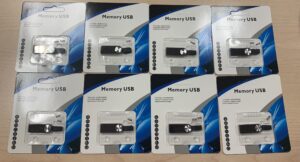 h Drive Work?
A flash drive is a compact storage device that uses nand flash technology to store information without moving parts. Unlike old floppy drives, it relies on solid-state electronics, making it durable and reliable. At its core, it contains flash memory chips, a controller, and a connector that plugs into your computer.
A usb flash drive connects to a laptop or desktop through a USB port, allowing instant access to files. When you use usb media, the operating system (or os) recognizes it as removable storage. Because it has no spinning platters like a hard drive, it is more resistant to shocks.
Modern generation flash technology has significantly improved performance. Today’s drives handle large amounts of data, making them ideal for presentations, backups, and even lightweight application storage.
2. USB 2.0 vs USB 3.0 vs USB 3.1 vs USB 3.2 – What’s the Difference?
The biggest difference between USB standards lies in transfer rates. Older usb 2.0 models are still functional but slower compared to usb 3.0 drives. A typical usb 3.0 flash drive offers dramatically improved performance over earlier versions.
Next came usb 3.1, followed by usb 3.2. The latest usb 3.2 gen standards deliver significantly higher bandwidth. If you run a drive test, you’ll notice that newer drives provide much fast speeds, especially when transferring large files like 4K videos.
Choosing a drive labeled usb 3.2 gen1 ensures strong compatibility and performance. While speeds depend on hardware limitations, modern interfaces make file copying far quicker than older standards.
3. How Much Storage Do You Need: 64GB, 128GB, 256GB, or 1TB?
Capacity depends on your needs. A 64gb or 32 gb option is sufficient for documents and small media files. Students and office users often find 128gb ideal, while photographers may prefer a 128gb usb or 256gb usb for high-resolution images.
For professionals handling video editing or backups, a 256gb drive or even 1tb usb makes more sense. Some high-capacity options like kingston’s 1tb models are ideal for business backups. You may also see references to 1 tb storage in product descriptions.
Advanced users might compare options like 240gb, 2tb, or even 4tb models. When evaluating, consider both storage size and budget. More storage space means fewer transfers and greater flexibility.
4. Should You Choose USB-C, Type-C Flash, or Traditional USB-A?
Connector type is crucial. Traditional drives use usb-a, also known as type-a, which fits most standard computers. However, modern laptops increasingly rely on usb-c ports.
A usb-c flash drive or type-c flash model supports reversible connections and faster data throughput. Devices labeled usb c or type-c are ideal for ultrabooks and smartphones.
If you need compatibility with older systems, a dual drive featuring both usb-a and usb-c connectors is perfect. These are especially useful for on-the-go workflows and mobile file sharing.
5. What Are Read Speed and Write Speed and Why Do They Matter?
Read speed measures how quickly data can be accessed, while write speed determines how fast files can be saved. For large video files, faster write speed is essential.
Manufacturers advertise peak read speed, but real-world results vary. A proper drive test helps measure actual performance. High-end models often outperform entry-level units significantly.
If performance matters, look for drives offering high sustained speeds. Premium options categorized as high-end flash typically deliver more consistent results.
6. Is a USB Flash Drive as Good as an SSD or Hard Drive?
A usb flash drive is convenient, but how does it compare to an ssd or traditional hard drive? An external solid state drive offers faster sustained speeds and larger capacities.
However, flash drives often win in portability. Their small form factor makes them ideal for quick transfers. Unlike bulkier external hard disk solutions, they fit on a keychain.
While solid-state drives are better for heavy workloads, a flash drive remains perfect for quick backups and light external storage tasks.
7. What Is a Dual Drive and Do You Need OTG Support?
A dual drive includes two connectors, often USB-A and USB-C. This flexibility is ideal for transferring files between devices without adapters.
If you use Android devices, look for otg compatibility. Some drives support micro usb alongside USB-C for broader compatibility.
These solutions simplify file transfer between laptops and smartphones, making them valuable for mobile professionals.
8. How to Format a USB Drive: exFAT, OS Compatibility, and File Transfer Tips
Formatting affects compatibility. The exfat file system works across Windows and macOS without file size limits, unlike older FAT32 formats.
When you plug a usb drive into a usb port, your os allows formatting options. Choose wisely based on your workflow.
Proper formatting ensures smooth file transfer, especially for videos exceeding 4GB.
9. Are Secure USB and High-End Flash Drives Worth It?
A secure usb model includes encryption to protect sensitive data. Businesses often require password protection for compliance.
Premium drives offer better durability and fast speeds, especially models labeled usb 3.2 or usb 3.2 gen. Some even feature retractable usb designs for protection.
While basic models are fine for everyday tasks, investing in higher-quality drives offer better longevity and reliability for critical data.
Key Takeaways
- A flash drive is a compact, reliable portable storage solution using solid-state technology.
- Choose usb 3.2 gen1 or newer for better performance and faster transfer rates.
- Pick the right capacity: 128gb, 256gb, or 1 tb depending on your needs.
- Consider usb-c or dual drive models for modern device compatibility.
With the right choice, your usb storage solution can remain one of the most versatile tools in your digital toolkit.